
Resources
Help & articles
Guides, how-tos and news for your catering business.
Help topics
Operations
Packaging Stickers
Print Avery labels for the day: one-click Original downloads, or Builder to choose orders, fields, copies and sheet.
Print Avery labels for the day’s orders. Use the original one-click downloads, or Builder to choose what goes on each sticker.
Where to find it
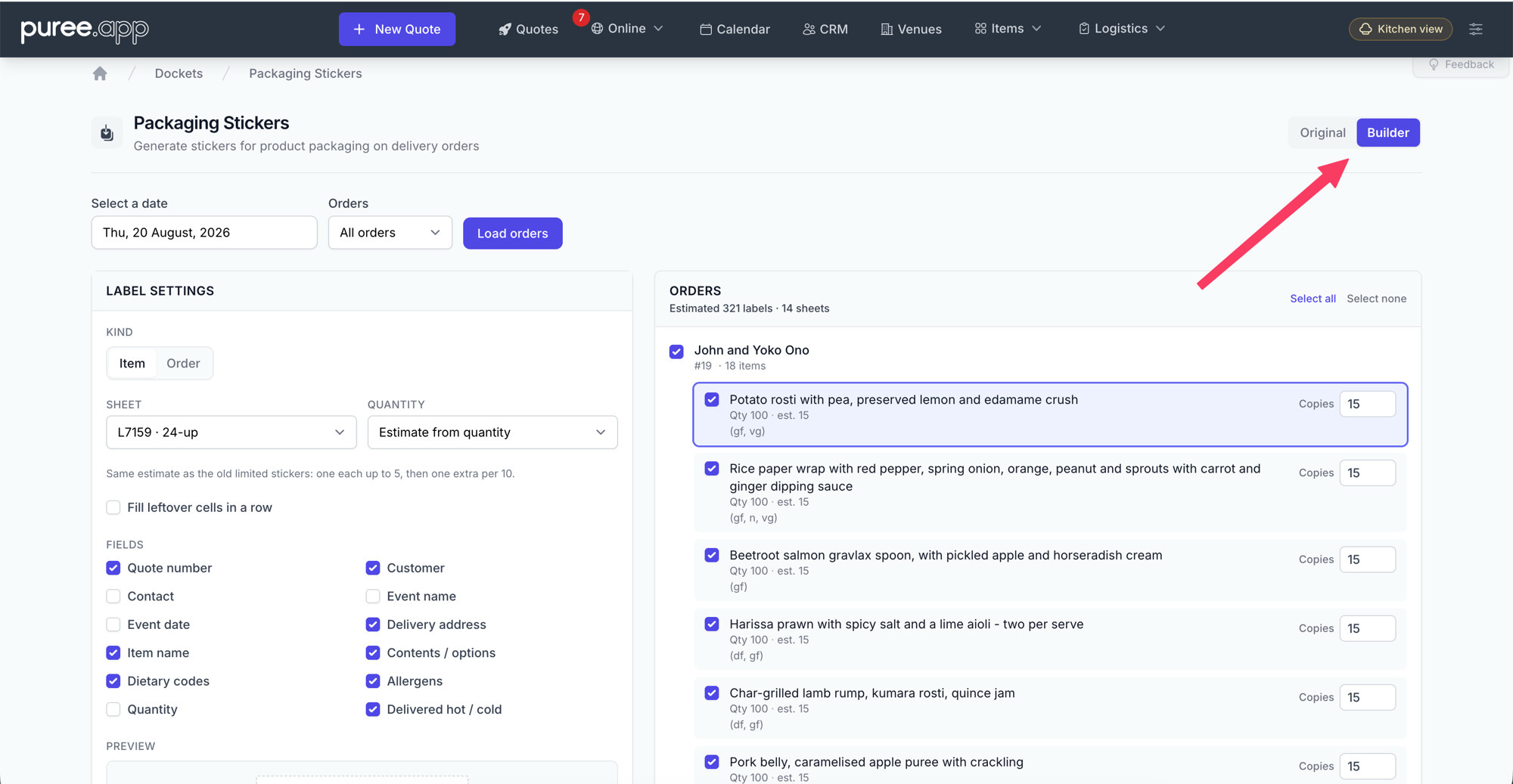
Open Logistics → Stickers. The page is called Packaging Stickers. In the top right you can switch between Original and Builder. A New Feature pointer under Builder opens the announcement article.
From a quote or order, the Dockets menu has a Labels item when the order has a menu and a date. That opens Builder with that day’s orders loaded and the quote already ticked.
Original
Original is the one-click Avery download you already know. Pick a date, then download one of the five sticker types for delivery orders or for all orders that day. These still print on an A4 24-up sheet (3 × 8), sized for Avery L7159 / 959029.
- Order number and customer — one sticker per menu item (two if the quantity is over 20), then filled out to a multiple of 3.
- Order number, customer and contact — the same count, with the contact name added.
- Item names — all — one sticker per unit of quantity, rounded up to a multiple of 3.
- Item names — limited — one sticker each for the first 5, then one extra for every 10 after that (so quantity 25 prints 7).
- Item names — fixed — exactly 3 stickers per item, whatever the quantity.
Item-name stickers print the dish without delivered hot or cold. A bundle is the box name, then the contents underneath, and you get one sticker per box — not one per sandwich inside it.
Builder
Builder is for when you want to choose the orders, the fields and the sheet. Pick a date (tomorrow by default) and whether you want all orders or delivery only, then load the list.
Kind
Item prints a sticker for each dish — name, contents, dietary tags and whatever else you tick. Order prints a sticker for the quote itself — typically the customer or quote number, plus contact and address. Previewing a line does not change the kind you will print.
How many copies
The quantity rule sets the default copies. You can type over any line. The rules are:
- Estimate from quantity — on an item, the same limited count as Original (one each up to 5, then one extra per 10). On an order, one label per order.
- One per quantity — one sticker for every unit. On an order, the old order-sticker count: one per item, two if that item’s quantity is over 20.
- One per line — one sticker per selected item, or one per selected order.
- Fixed number — the same copies on every selected line.
Tick Fill leftover cells in a row if you want each line’s copies rounded up so a row on the sheet is the same label, not a mix.
What prints on the sticker
Tick the fields you want. Quote number, customer, contact, event name, event date and delivery address can appear on both kinds. Item name, contents, dietary codes, allergens, quantity and delivered hot/cold are item-only. Turning a field off drops it from the preview and the PDF.
A bundle or any line with options never jams those names into the heading. The parent is the heading — Sugar Rush — and each content is its own dashed line underneath. Contents do not show a quantity prefix. Allergens print as their names (Gluten, Milk), not codes in capitals.
Sheets
Builder places labels on the published Avery A4 grid, not the old approximate 3 × 8:
- L7159 / 959029 — 24-up, 63.5 × 33.9 mm. The default, and the same size Original uses.
- L7163 — 14-up, 99.1 × 38.1 mm. A wider label, good for order stickers with an address.
- L7651 — 65-up, 38.1 × 21.2 mm. A small label; type shrinks and long contents are trimmed.
Preview and download
Click an item to pin its sticker in the live preview. Click the order name to pin the order sticker. The highlight follows the pinned row. When you are happy, download the PDF. The preview and the PDF use the same fields and the same layout — one centred block. Each download is recorded on the quotes in the pack, the same way a docket print is — hover a download button to see who last printed and when.
Settings are remembered for the account
Kind, sheet, quantity rule, row-fill and fields save for the whole account, on any device. Date, which orders you tick, and typed copy counts stay for this visit only.
Related topics
Bundles and how they appear on paperwork are in our Items & Categories help page. For kitchen dockets, see our Dockets help page. The announcement is our article Packaging Labels: Choose What Prints on Every Sticker.