
Resources
Help & articles
Guides, how-tos and news for your catering business.
Help topics
Quotes & Orders
Menu & Category Commentary
Add a block of description under any menu header or item category on a quote, with account-wide defaults that seed every new quote.
Add a block of description under any menu header or item category on a quote, with account-wide defaults that seed every quote.
Commentary shows on quotes only. Menu & category commentary is customer-facing — it appears on the online and PDF quote and across every styled quote template. It does not appear on any docket (chef, consolidated, driver, beverage, equipment or event brief), report or menu. Use it to describe your offering to the customer, not for kitchen or delivery instructions.
What Is Per-Group Commentary?
Per-group commentary is a block of text that renders below a group’s heading and above that group’s items on a quote. A “group” is a menu header or an item category. It gives you a natural place to describe a course, explain how a service style works, or note what a category includes.
It works across the Menu, Beverages, Equipment and Miscellaneous sections, for both menu headers and item categories.
Three Levels of Commentary
- Section commentary — for a whole section (Menu, Beverages, Equipment, Miscellaneous)
- Per-group commentary — under a specific menu header or item category within a section
- Item detail — the description on each individual item
Per-Quote Text vs. Account-Wide Defaults
Each quote can hold its own commentary for a group, so you can tailor the wording to the event. Because most groups say the same thing most of the time, you can also set an account-wide default on the menu header or category itself. The default automatically seeds every new quote that uses the group — you get your standard description without retyping, and you can adjust it per event.
Editing a quote’s commentary never changes the default. Clear a quote’s commentary (submit it blank) and the group falls back to the account-wide default again.
Setting a Default
Edit a menu header (Settings → Menu Headers) or an item category and you’ll find a default commentary field. Whatever you write there becomes the starting text for that group on every quote. Leave it blank to add commentary quote-by-quote instead.
Editing on a Quote
Inside a quote, click the commentary text (or the pencil icon) beneath a group heading to edit it inline. The editor opens seeded with the group’s default. Save to keep a per-quote version, or submit it blank to clear your override and return to the default.
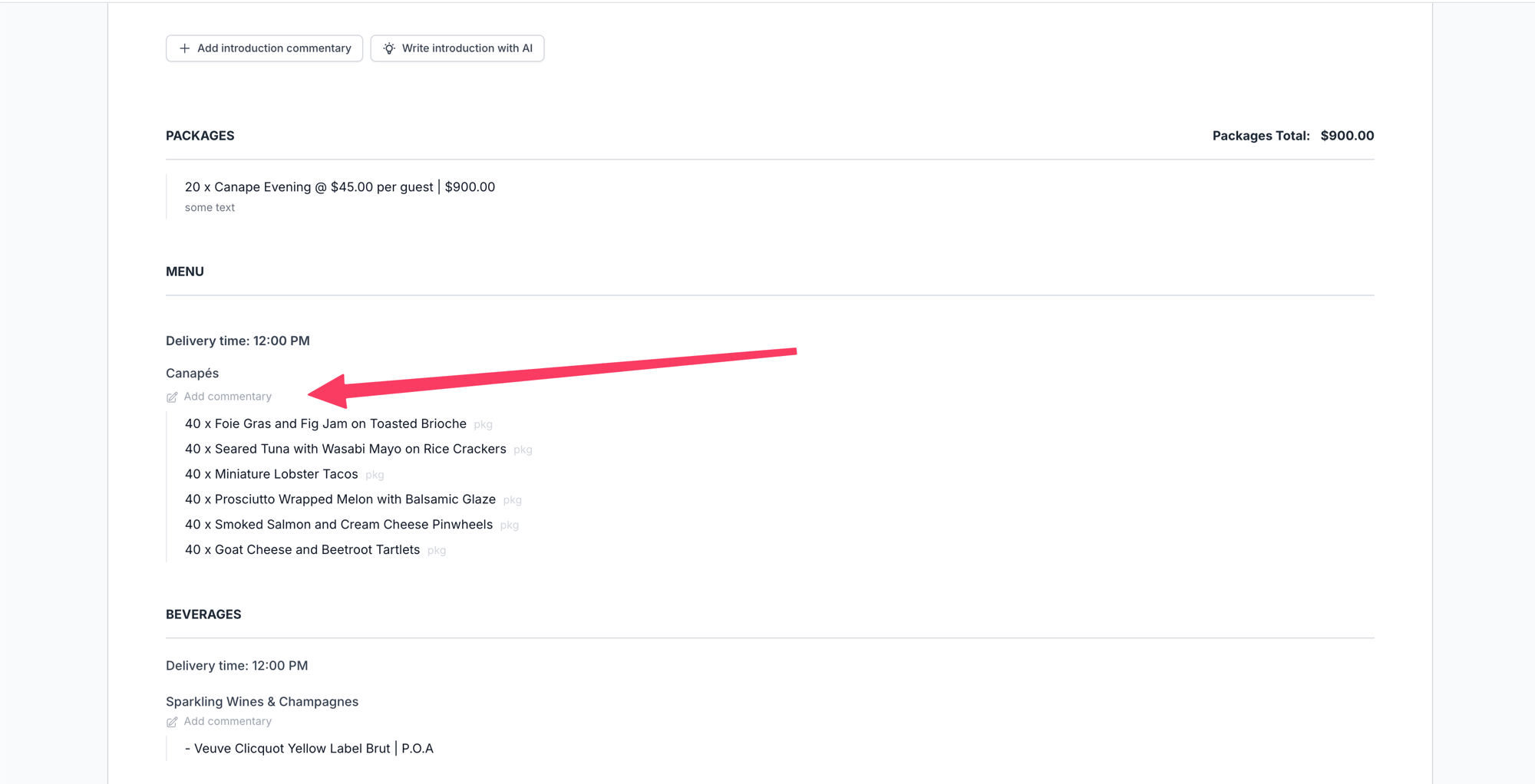
Customer-facing commentary renders in an understated, italic style in your template’s theme font. When you duplicate a quote, its per-group commentary is copied across too.
Tips
- Set defaults on the headers and categories you use most, so every quote starts polished
- Keep commentary customer-facing — remember it never reaches dockets, so kitchen notes belong elsewhere
- Tailor the seeded text per event where it helps, without worrying about affecting the default