
Options, Includes, Bundles and Packages: Which One Do You Mean?
By Andrew Hemphill · 17 August 2026
A sandwich platter can be set up four different ways in Puree, and only one of them puts twelve sandwiches on the chef docket. Options, Includes, bundles and packages sit next to each other in the app and all end up as lines on a quote. Here is the job each one actually does.
The four, in one place
- Options are a choice. Someone picks, every time: bread type, portion size, filling. A surcharge can ride along. Tick Default on the usual pick so it arrives already selected.
- Includes are wording. What comes with the item, always, with nobody invited to untick it. Jam and cream. The kitchen is not given extra dishes, only the words on the quote and the docket.
- A bundle is the item itself: a platter or boxed lunch made of other items in your catalogue. Tick This item is a bundle under the item name. The customer still sees one priced line, with the contents listed underneath. The chef docket gets each sandwich and cookie as its own dish, with recipes and allergens.
- A package is the shape of an event, priced per guest. Staff, room hire, “pick three canapés”. You do not order twelve packages the way you order twelve lunch boxes.
| Options | Includes | Bundle | Package | |
|---|---|---|---|---|
| Someone chooses | Yes, every time | No | No, the contents are fixed | Only where you set a choice rule |
| The kitchen gets a dish | No, it changes the dish it sits on | No, only wording | Yes, one row per content | Yes, the package items |
| Priced | Optional surcharge | Usually zero, a surcharge is always charged | One price on the bundle item | Per guest |
| Where you set it up | Options & Includes on the item | Options & Includes on the item | The item itself, Contents | Items → Packages |
| Recipes and allergens | Tag the option if it changes the dish | Tag the line if it needs it | On the contents, never on the wrapper | On each item, as normal |
A rule of thumb. The customer should read this: Includes. The kitchen should make this: a bundle. Someone picks this each time: Options. This is the event, priced per head: a package.
They nest. A wedding package can include a boxed-lunch bundle. That bundle’s sandwich can still have a bread-type option. Includes on a content item travel with it onto the bundle: the words and any surcharge sit under that content on the quote, and nobody is invited to untick them. “Served with jam and cream” can also stay as Includes on the scone platter itself, even after the scones become real contents.
Options, and a default
Open the item, scroll to Options & Includes, and you will see a small Default pill on each option row. Tick the ones that should start selected and save. A Single group can only have one default, and ticking a second releases the first. A Multiple group can have as many as you like, or none.
Defaults fill in a group that has nothing chosen. Opening an old quote never quietly changes what was agreed. They show up in the quote builder, inside packages, and on your online order form: the usual selection already made, every other option still there to switch to.
A compulsory group used to arrive with whichever option was first in the list. Now it is whichever you marked as the default, falling back to the first only where nothing is marked.
One consequence worth knowing. Because “nothing chosen” is what brings the defaults back, clearing every option on an optional group does not stick: reopen the line and the default is ticked again. If a group needs a real “none” answer, add a None option and make that the default.
Includes: when it is not a choice
A default still leaves the customer free to change their mind. Sometimes that is wrong. The three things in a Devonshire tea are not options anyone should be unticking. They are simply what the item is.
Every group has a toggle: Options or Includes. Switch to Includes and it stops being a choice. Every line is on the order, always. Selection type, Compulsory and Default disappear, because none of them have anything left to say. The lines show as plain text rather than buttons.
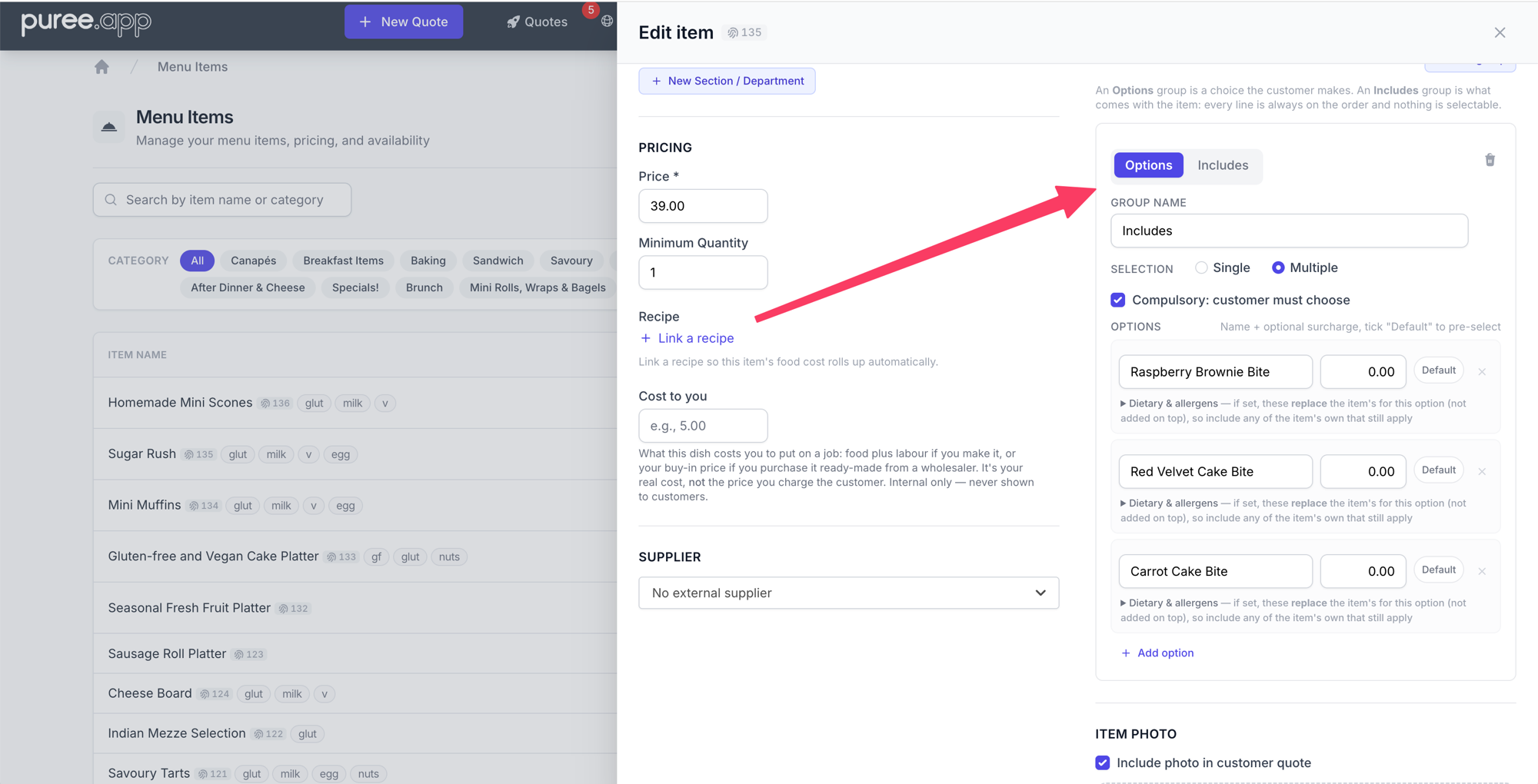
A line in an Includes group can still carry a surcharge, and because it is always on, that surcharge is always charged. More often it is tidier to leave those at zero and put the money in the item’s own price.
If you listed platter fillings as Includes so the quote would read properly, that still works. Switch it to a bundle when those fillings need to be cooked, packed, costed or allergen-tagged as dishes.
A bundle: the kitchen has to make these
A boxed lunch, a grazing platter, a hamper: the customer is buying one thing, and the kitchen is making several. A bundle is that item, set up once. It is still an ordinary catalogue item, priced and ordered like any other. It is not a package.
Setting one up
Tick This item is a bundle directly under the item name, then choose what to call each one: bundle, platter, lunch box, hamper, box, pack, tray, bag or set. Options & Includes then becomes Contents, headed with that word. Search for each catalogue item, set how many go into one of the parent with the plus and minus buttons, and click Add item for the next one. A platter that holds six sandwiches carries 6, so one platter yields six and three yield eighteen.
Bundles are not only for food. The switch is on menu, beverage, equipment and miscellaneous items, so a bar kit, a drinks pack or a welcome box is set up exactly like a lunch box. Venue items are the one exception: a venue line is a booking, not something you assemble.
Contents can cross those groups as well, so a lunch box can hold a sandwich and a can of drink. When the list covers more than one group, each heading in the search results says which one it belongs to (Beverages · Soft drinks), because two categories in different groups can share a name.
If a content item has a delivery temperature or its own choices, bread type or gluten free, those defaults are set on the bundle row. The quote builder opens with them already selected and you can change them for that line. Leave them blank and Puree falls back to the content item’s own defaults.
Contents are one level deep. An item that is already inside another bundle cannot itself be ticked as a bundle, and the tickbox tells you which platters it sits in. Nor can a content item be deactivated while a live bundle still includes it: take it out of the bundle first.
What the switch changes
Ticking the box tidies up after itself, and it is worth knowing what moves:
- Dietary codes and allergens leave the parent. The pickers disappear and anything already tagged on the item is cleared. A platter’s codes come from what is in it, so tagging the wrapper as well would be a second answer that can disagree with the sandwiches.
- Include in chef & driver docket is unticked once, then left to you. The kitchen should prep the contents, not a line called the platter. The bundle still prints on the driver docket, because that flag hides the assembly from the kitchen, not the box from the van. That box is a menu-item setting, so on an equipment or beverage bundle there is nothing to untick.
- The external supplier is cleared. A bundle is assembled from your own catalogue, not bought in.
- The Options & Includes section becomes the contents list. A bundle does not offer choices of its own. Put those on the contents, where the kitchen will see them.
- Untick it again and the links drop away, but the wording survives: the contents stay behind as plain Includes text. Nothing on your quotes disappears.
What the customer sees
On the quote the customer sees one priced line. The description sits under the name, then the contents as sub-lines, 2x Egg Salad Sandwich, with each content’s codes on that sub-line. Contents are not priced: the bundle’s price covers them. A content option with a surcharge, gluten-free bread for instance, adds to the bundle line and shows straight after that option as (additional $12.00). Two tickboxes control those counts. Untick Show quantity in customer quote and the parent count and the content prefixes both hide, so the count cannot be read off the contents. Untick Show contents quantity in customer quote instead and only the contents lose theirs: the customer still sees 2 x Savoury Filled Croissants, with Egg Salad Sandwich under it rather than 2x Egg Salad Sandwich. Both are set per line, so the same platter can be quoted either way on two orders.
Guest menus and menu PDFs list the bundle once and the contents by name only, with no quantities. Dietary codes and allergens still print there.
What the kitchen and the van see
The chef docket lists each content as its own dish, tagged with the bundle it belongs to, (Bundle item: Savoury Filled Croissants). The equipment and beverage count sheets read the same way for a bar kit or a cutlery set. A chef note written against the bundle is copied onto every one of those lines, and a content given its own note in the item modal overrides it for that dish alone. The driver docket, run sheets and packaging stickers follow the quote instead: the box, then the items listed under it. Stickers count one per box, not one per sandwich.
Packing and count sheets keep the quantified wording, using the word you picked on the item. Equipment and beverage dockets are count sheets, so they list what actually leaves the store: the contents, each tagged part of 2 x Bar Kit sets. The kit’s own line is not counted, because there is no such thing on a shelf to count out and count back in. If the same glass is also on the order in its own right, it stays a row of its own, so a standalone six and a packed twenty-four never merge into thirty.
Recipes and food cost live on the contents, so a bundle is never flagged as a dish without a recipe, and it is the sandwiches that show up on your prep and shopping lists. In the consolidated item view you see the contents in real quantities rather than a count of platters.
Contents come from the catalogue
Content lines are worked out from the bundle, not typed onto the quote. You cannot change a content’s quantity on one order: change it on the item and it applies everywhere from then on. Delete the bundle line and its contents go with it. Re-save the order and the contents are rebuilt in place, so a chef ticking one off in the kitchen does not lose that when you edit the quote.
Online, a bundle behaves like any other item: contents show under it, and a content’s own choices appear so the customer can pick them. Availability follows the bundle item, so set the available dates, days and cutoffs on the bundle rather than relying on the contents.
Bundles show a badge on the items list, with a Bundles filter next to the category pills on each item group that has them. They work inside packages: if a package choice rule offers items, it offers bundles.
A package: the event
A package is priced per guest. It carries fixed items the customer simply gets, flexible items they choose from a category, staff worked out per 100 guests, equipment and venue hire. Set the guest count on the quote and every quantity follows. Use a package when you are selling the shape of an event, not a box of sandwiches.
A package can contain a bundle, and often should: the platter is one item to price and pack, the package is the day it belongs to. Setup is on our Packages help page.
Tax on packages, bundles and options
A priced package uses the package’s tax band for its full price, including paid options. That band overrides tax bands on the items and bundles included in the package.
A bundle sold separately uses the bundle’s tax band for its full price, including paid options on its contents. Its contents’ individual tax bands do not apply. If the bundle is included in a priced package, the package’s band takes precedence.
Separately priced items outside the package or bundle keep their own bands. Override all tax bands on a quote takes precedence over all of these settings.
See Tax Rates for tax setup.
Five quick calls
- Scones, jam and cream on a Devonshire tea, never separated. Includes, if the kitchen already makes it as one dish. A bundle, if the scones are a catalogue item with their own recipe and the jam is portioned separately.
- White or wholemeal on a sandwich. Options, single selection, with your usual bread as the default.
- A twelve-piece sandwich platter. A bundle. Twelve real sandwiches on the chef docket, one line and one price on the quote.
- Buffet at $65 a head with a choice of two mains. A package, with a choice rule for the mains.
- “Includes disposable plates and napkins” on a delivery item. Includes if it is only wording. A bundle if the plates are stock you count and pack.
The mixups worth avoiding
- Tagging a bundle with allergens. Tag the contents. The wrapper carries none, on purpose, and the codes still reach the quote through the sub-lines.
- Building a per-unit product as a package. A package is per guest all the way through. If you want to order twelve of it, it is a bundle.
- Using Includes for things the kitchen has to make. They read beautifully and produce nothing to prep, cost or allergen-tag.
- Putting the surcharge in two places. A content’s option surcharge already adds to the bundle price. Do not add it to the bundle’s own price as well.
Nothing to switch on
Options, Includes and bundles are live on every account. Existing items stay as they are until you touch them. Groups you already have stay Options groups. Walkthroughs for setting an item up, including the bundle switch, live on our Items & Categories help page. Options and Includes in general are on our Item Options help page, and how all of this reads on kitchen and packing paperwork is on our Dockets help page.
As always, if you have questions or feedback, reach out to us at email@puree.app.