
Hiding the Customer View: Temporarily Take a Quote Offline Without Deleting It
By Andrew Hemphill · 26 July 2026
You’ve sent a customer their quote link — and then something changes. A price needs reworking, you’re waiting on a supplier to come back to you, or a booking’s on hold pending a phone call. You don’t want to delete the quote and lose all your work, but you’d rather the customer couldn’t open it for the moment. Puree’s new Disable customer view option does exactly that: it temporarily takes a quote offline for your customer, while everything stays exactly as it is in your account.
What It Does
Every quote has a customer link — the standard quote view, or one of your branded quote templates. Disabling the customer view pauses that link. Anyone who opens it sees a friendly “This quote is currently unavailable to view” message instead of the quote itself. Nothing about the quote changes; only your customer’s ability to open it is paused.
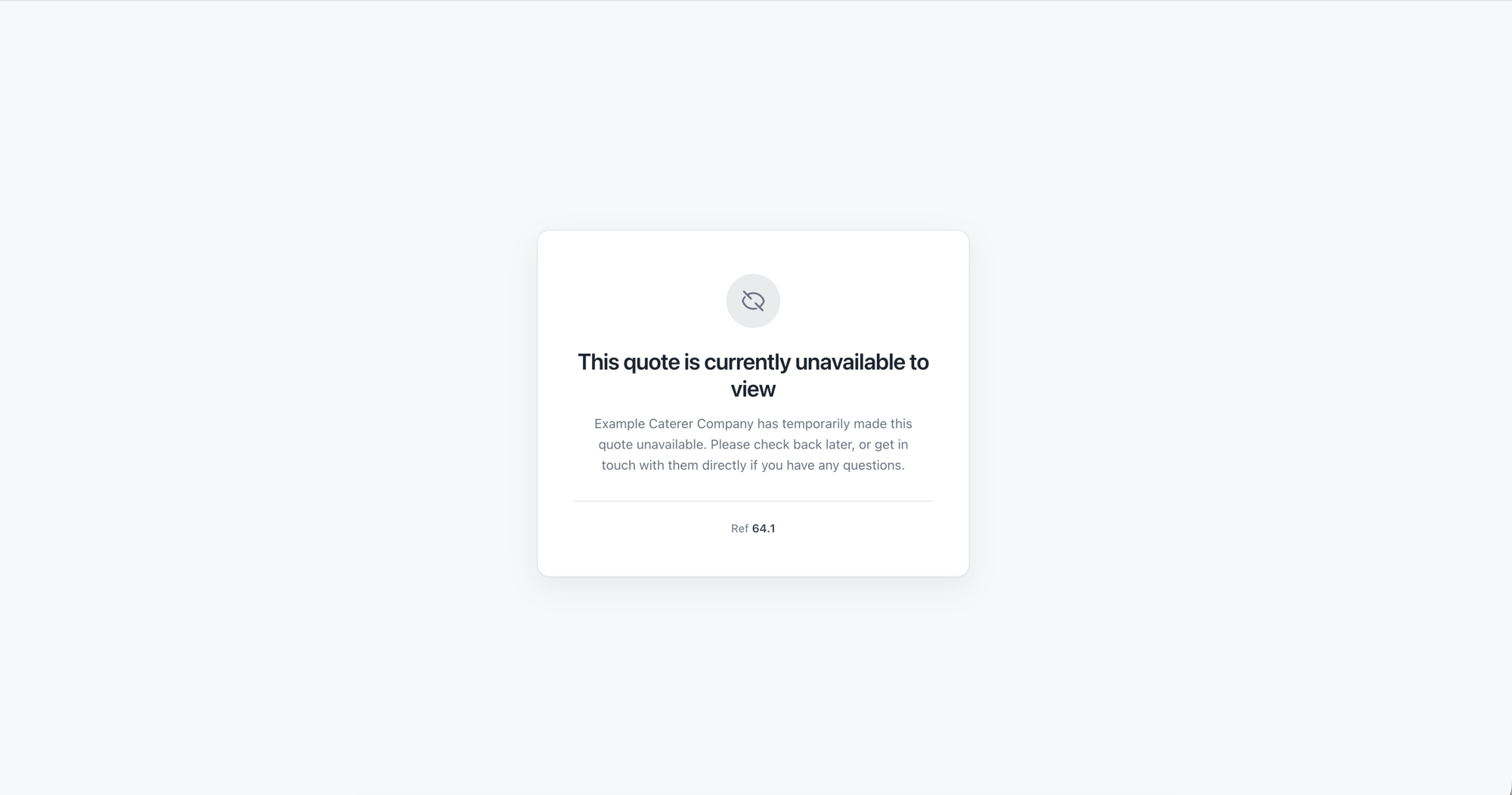
While the view is disabled, your customer sees this message in place of the quote — styled in your quote’s own colours and fonts.
How It Works
Open the quote and click the Actions menu at the top right, then choose Disable customer view. That’s it — the customer link is now paused. When you’re ready to let your customer back in, open Actions again and choose Enable customer view. The link goes live again immediately.
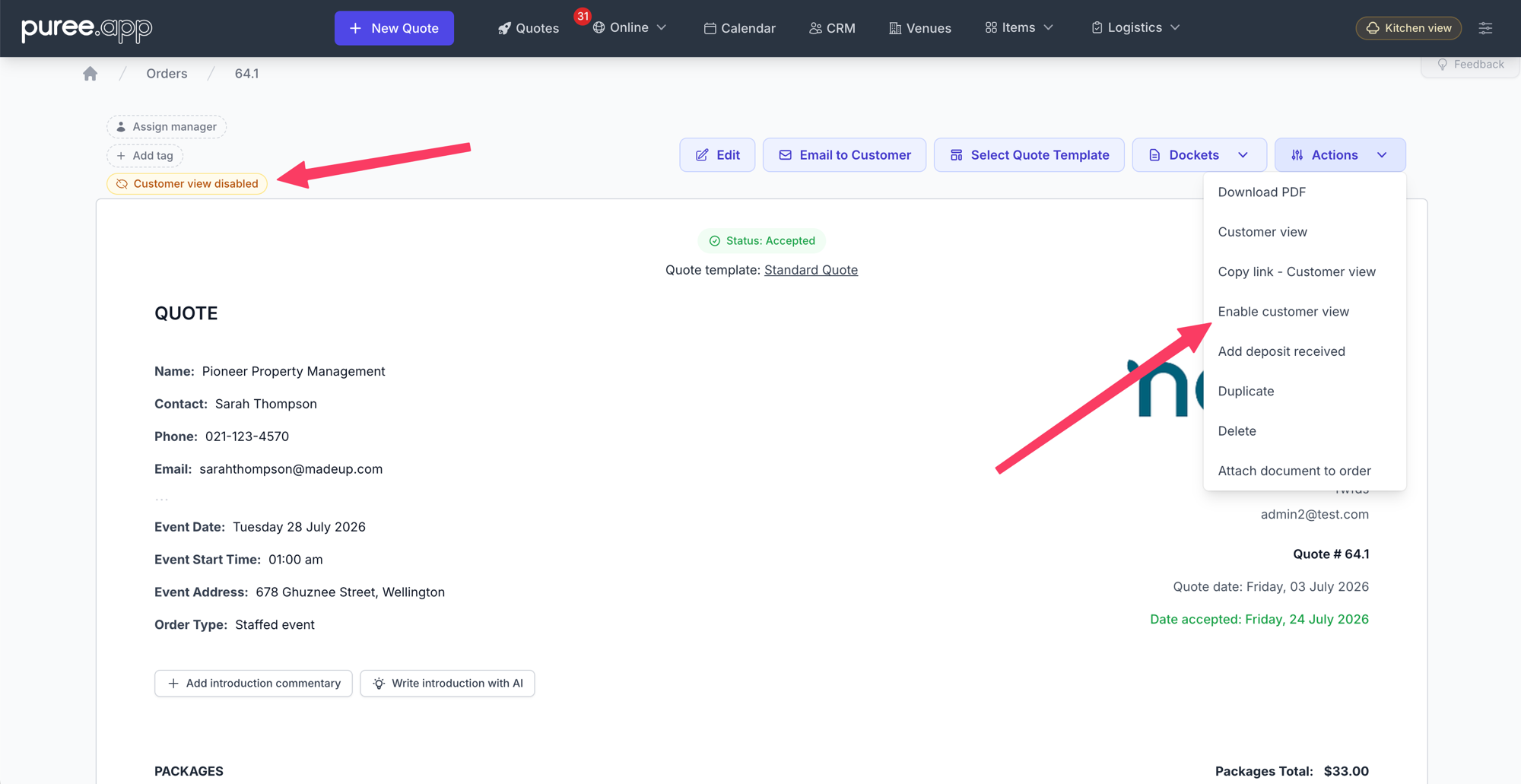
The same Actions menu item toggles between Disable customer view and Enable customer view — and a “Customer view disabled” badge shows near the top of the quote whenever it’s paused.
The unavailable message isn’t a generic error page — it picks up your quote’s own colours and fonts, exactly like the confirmation page a customer sees after accepting. So even when a quote is paused, it still looks like it belongs to your brand, and the customer is gently invited to check back later or get in touch with you directly.
A Full Pause, Not Just a Hidden Page
Disabling the customer view is a proper hold. While it’s off, your customer can’t read the quote, accept or decline it, or make a payment through the link — across the standard view and every branded template alike. This holds even for a link they saved or bookmarked earlier: the link keeps working, but it shows the unavailable message until you switch the view back on.
Good to know: disabling the customer view never blocks you. Use Actions → Customer view to preview the quote exactly as your customer would normally see it, even while it’s hidden from them — so you can keep checking your changes look right before going live again.
Always Know When a Quote Is Paused
It’s easy to forget you’ve paused a quote. So whenever a quote’s customer view is disabled, a clear “Customer view disabled” badge appears near the top of the quote in your account — a constant reminder that your customer can’t currently see it, until you re-enable the view.
When to Use It
- Reworking a quote you’ve already sent — pause access while you adjust pricing or swap items, then re-enable once it’s ready
- Waiting on a supplier or venue — hold the quote closed until you can confirm a cost or availability
- A booking on hold — keep the quote out of reach pending a deposit, a phone call, or a decision on your side
- Retiring an old link — quietly take a superseded quote offline without deleting it
Getting Started
The option is available now on every quote — no setup required. Open a quote, click Actions, and choose Disable customer view to pause it, or Enable customer view to bring it back.
For step-by-step instructions, see our Hiding the Customer View.