
Unavailable Dates: Close a Day Once, and Every Form Knows
By Andrew Hemphill · 19 August 2026
Every caterer has days they can’t trade. The Christmas shutdown, Good Friday, the week the kitchen is being refitted, or a Saturday that is simply already full. Puree has always let you block those dates, but only inside a single online order form, which meant setting them again on every form and nowhere else in the app knowing about them. Unavailable dates now live on your calendar, once, for your whole business.
Block a Day With One Click
Open Calendar and hover any day. Alongside the familiar plus button for a new order, there’s now a small cross. Click it and the day is closed. The cell picks up a soft diagonal hatch and a label, so a shutdown is obvious as you scroll through the month. Click the cross again to reopen the day.
Closed days still show their orders. That’s deliberate. Being shut doesn’t mean you never take the exception booking, and hiding those orders would be the fastest way to forget one.
A Panel for Bigger Closures
Clicking twenty days one at a time is nobody’s idea of a good afternoon. The Unavailable dates button in the calendar toolbar opens a panel with twelve months of calendars in it, so you can see and set the whole year at a glance.
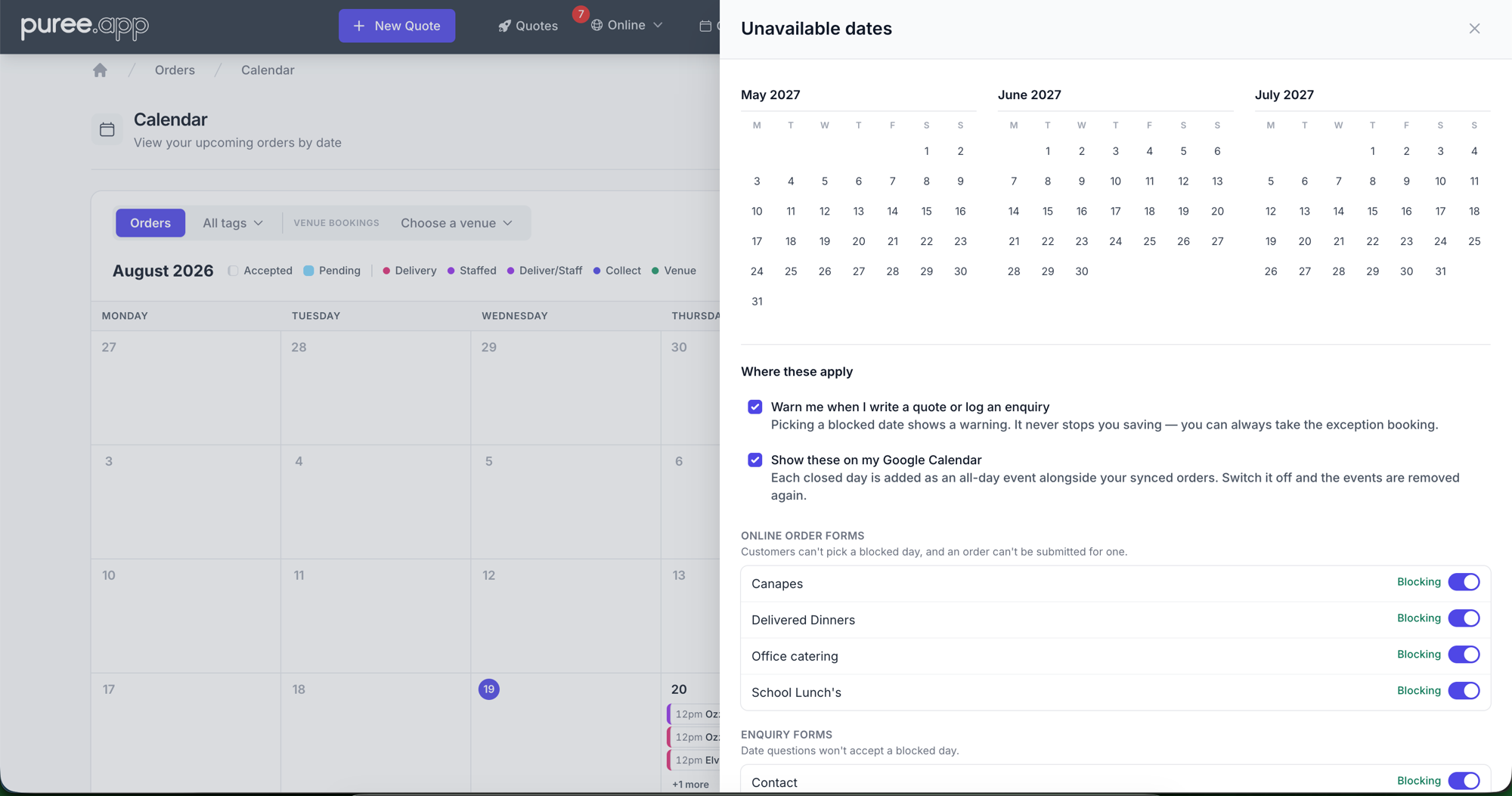
- Block a range: give it a start date, an end date and an optional reason such as “Christmas shutdown”. Every day in between closes at once.
- Clear a range: changed your mind about the whole period? Clear it in the same action rather than reopening days one by one.
- Add a reason: the reason shows on the calendar and in the warning you get when writing a quote, so anyone on your team knows why the day is shut.
You Choose Where They Apply
One list of closed days, and each place that could use it decides whether to. Every switch sits in the same panel, so you can see at a glance which forms are honouring your closures and which aren’t.
- Online order forms: customers can’t pick a closed day, and an order can’t be submitted for one. Set per form, so a shop that trades right through a shutdown can carry on taking orders.
- Enquiry forms: date questions stop accepting closed days, so you stop fielding enquiries for a date you were never going to work.
- Writing a quote or logging an enquiry: you get a warning beside the date, and it never stops you saving. Somebody has to be able to take the booking that’s worth opening the kitchen for.
- Google Calendar: optionally push each closed day across as an all day event, sitting alongside the orders that already sync. Switch it off and those events are removed for you.
On Your Google Calendar Too
If you already sync your orders to Google Calendar, your closed days can go across as well. Tick Show these on my Google Calendar in the panel and each one is added as an all day event, sitting above the orders for that day rather than competing with them. Any reason you gave rides along in the title, so the entry reads “Unavailable, Christmas shutdown” and makes sense to anyone you’ve shared the calendar with.
It works the same way in reverse. Untick it and the events Puree created are removed again, so you’re never left tidying up a calendar full of days you’ve stopped publishing. Reopen a single day in Puree and just that day’s event disappears. Rename a shutdown and the events are relabelled.
The switch only appears once you have a Google Calendar linked, and it starts switched off. Nothing lands in your calendar unless you ask for it. If you haven’t connected Google yet, the panel points you at where to do it.
What Your Customers See
A closed day used to be a grey number a customer couldn’t click, with no explanation, which reads more like a broken form than a decision. Blocked days are now struck through, with a note under the date field telling the customer that crossed out dates are unavailable. They pick another day instead of emailing you to ask what’s wrong with your website.
What Happens to Dates You’ve Already Set
Nothing is lost. Every date you’d already blocked on an order form moves across to your calendar automatically, and the form that had them keeps blocking exactly the days it blocked before. You’ll find them waiting for you in the new panel.
Two things stay switched off until you say otherwise. Enquiry forms don’t start blocking dates on their own, because they never did before and we’re not about to start turning away enquiries you didn’t ask us to turn away. Neither does an order form that never had dates of its own. Flip either on in the panel whenever you’re ready.
Getting Started
Unavailable dates are live now for every account. Open Calendar, hover a day and click the cross, or use the Unavailable dates button in the toolbar to block a run of days and choose where they apply.
For the full detail, see the Calendar & Google Calendar, or the Online Order Form for how the switch works on a form.